

Cybercriminals claim to be in the possession of 120 million accounts, offering private messages from 81,000 “sample” accounts as proof.
Cybercriminals are offering for sale Criminals are selling the private messages of 81,000 hacked Facebook accounts for 8p (10 cents) per account.
The accounts were being offered for sale on a number of underground criminal forums throughout September and October, initially on the infamous BlackHatWorld forum, many of the compromised accounts originated from Russia and Ukraine, but some also belonged to users in the US, UK, and elsewhere. Several users who had their messages stolen confirmed the authenticity of the data, which included . The stolen data includes photos from events, complaints about family members and intimate correspondence, leading to fears of blackmail activities being based on this data.
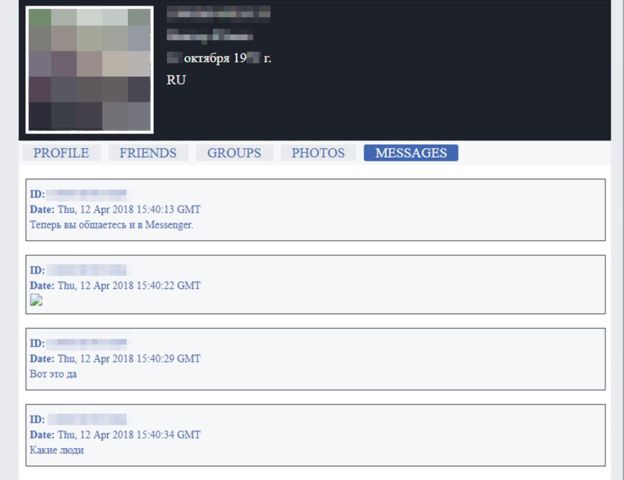
The seller, who was online with the username “FBSaler,” claimed top be in possession of information related to 120 million Facebook users. Examples of the data had been published to support to authenticity of the data to prospective buyers, and at least one of the websites where the data was published is based in St Petersburg, Russia. The IP address belonging to this site is currently flagged by the CyberCrime Tracking Service for spreading the LokiBot Trojan, which allows attackers to gain access to user passwords.
“We sell personal information of Facebook users. Our database includes 120 million accounts, with the ability to sample by specific countries. The cost of one profile is 10 cents.”
So has Facebook been hacked?
In short, no. The data has been analysed and it appears that has been harvested through malicious browser extensions. A browser extension is something like a plugin for your browser that adds certain functions and features to it. Extensions can modify the user interface or add some Web service functionality to your browser. For example, extensions are used to block ads on Web pages, translate text from one language to another, or add pages to a third-party bookmark service such as Evernote or Pocket. Extensions are plenty — there’re hundreds or even thousands of them, for productivity, customisation, shopping, games, and more.
Almost all popular browsers support extensions — you can find them for Chrome and Chromium, Safari, Opera, Internet Explorer, and Edge. They are widely available and some of them are quite helpful, so a lot of people end up using at least several extensions, and sometimes their number on one PC extends to several dozen. But, as we’ve mentioned, extensions can be both convenient and dangerous.
How to use extensions safely
Despite the fact that extensions can be dangerous, some of them are really useful, and that’s why you probably wouldn’t want to abandon them completely. I continue to use about a half-dozen of them, and I know for sure that two of them have the aforementioned permission “to read and change.”
It might be safer not to use them at all, but that’s inconvenient, so we need a way to use extensions more or less safely. Here’s how:
- Don’t install too many extensions. Not only do they affect computer performance, but they are also a potential attack vector, so narrow their number to just a few of the most useful.
- Install extensions only from official Web stores. There, they undergo at least some scrutiny, with security specialists filtering out those that are malicious from head to toe.
- Pay attention to the permissions that extensions require. If an extension already installed on your computer requests a new permission, that should immediately raise flags; something is probably going on. That extension might’ve been hijacked or sold. And before installing any extension, it’s always a good idea to look at the permissions it requires and think about whether they match the functionality of the app. If you can’t find a logical explanation for the permissions, it’s probably better not to install that extension.
- Delete old extensions that “no longer work” or you don’t use – developers can sell extensions they no longer support – so who knows who they are selling them to?
Reviewing and deleting Extensions
Google Chrome:
* Click the Customise and control menu icon on the Google Chrome toolbar and then More tools.
* Select Extensions from the side menu.
* Review the slider underneath the details of the extension, is it to the right and blue (active) or greyed out? If you are not using it, or you are not sure if you actually use this extension, click the remove button.
Microsoft Edge:
* Select More (…) to open the menu.
* Select Extensions from the menu.
* Right-click the extension you want to remove and select Remove, or select the extension and click the Remove button.
Safari:
* Select Preferences
* Select Extensions from the menu.
* Turn off the extension by deselecting the Enable checkbox. If you can’t determine what an extension does, or you don’t expect to use it again, click the Uninstall button


